Groups
Overview
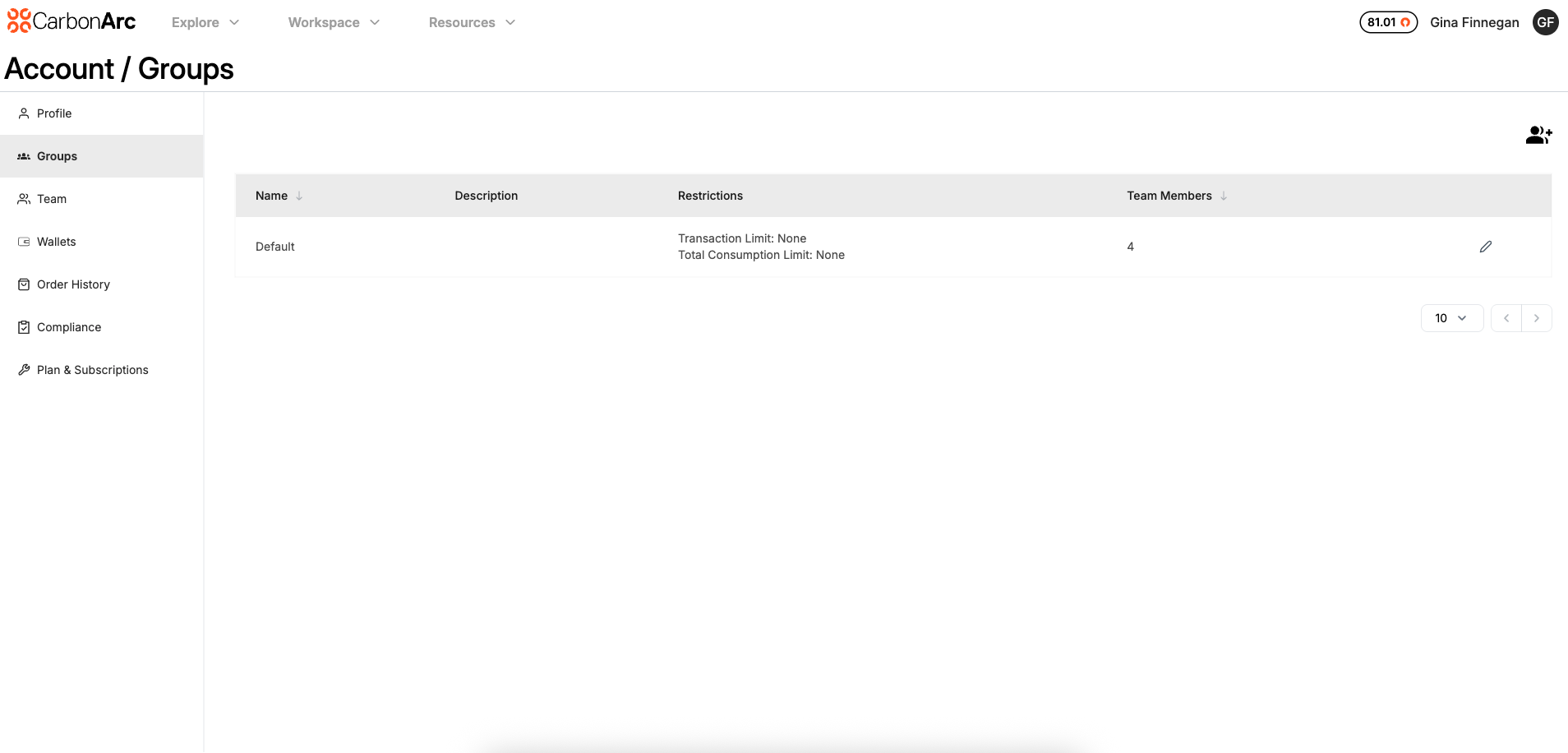
The Groups feature lets you organize users and set usage limits across your organization. This guide explains how to work with groups in the platform.
Core Concepts
- Groups: Organizational units that help you organize users into teams and apply spending limits.
- Default Group: Automatically assign new users to a default group.
- Transaction Limits: The maximum number of tokens a user in the group can spend in a single transaction.
- Group Consumption Limit: The total number of tokens that all members of a group can spend collectively.
- Role-Based Access: Only Client Admins and Super Admins can manage groups; regular users can view group membership and limits.
How to Manage Groups
Must be an Admin to manage groups
Create a New Group
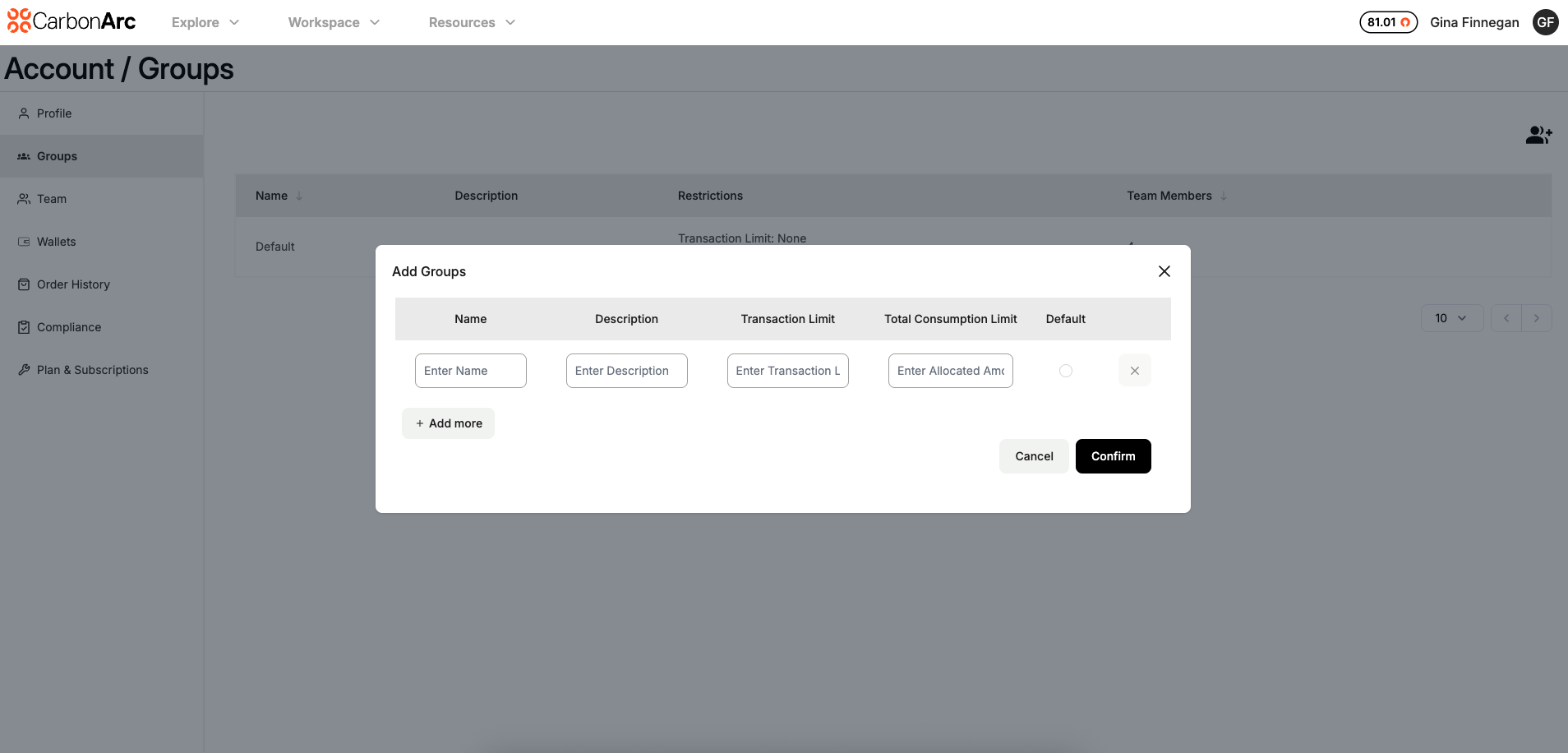
- Select the Add Groups icon in the top right of the page.
- Enter a Name for the group.
- (Optional) Enter a Description, Transaction Limit, and Total Consumption Limit.
- If changing the default group, toggle the Default field to ON.
- Select Confirm to save or + Add More to create additional groups.
Assign Team Members
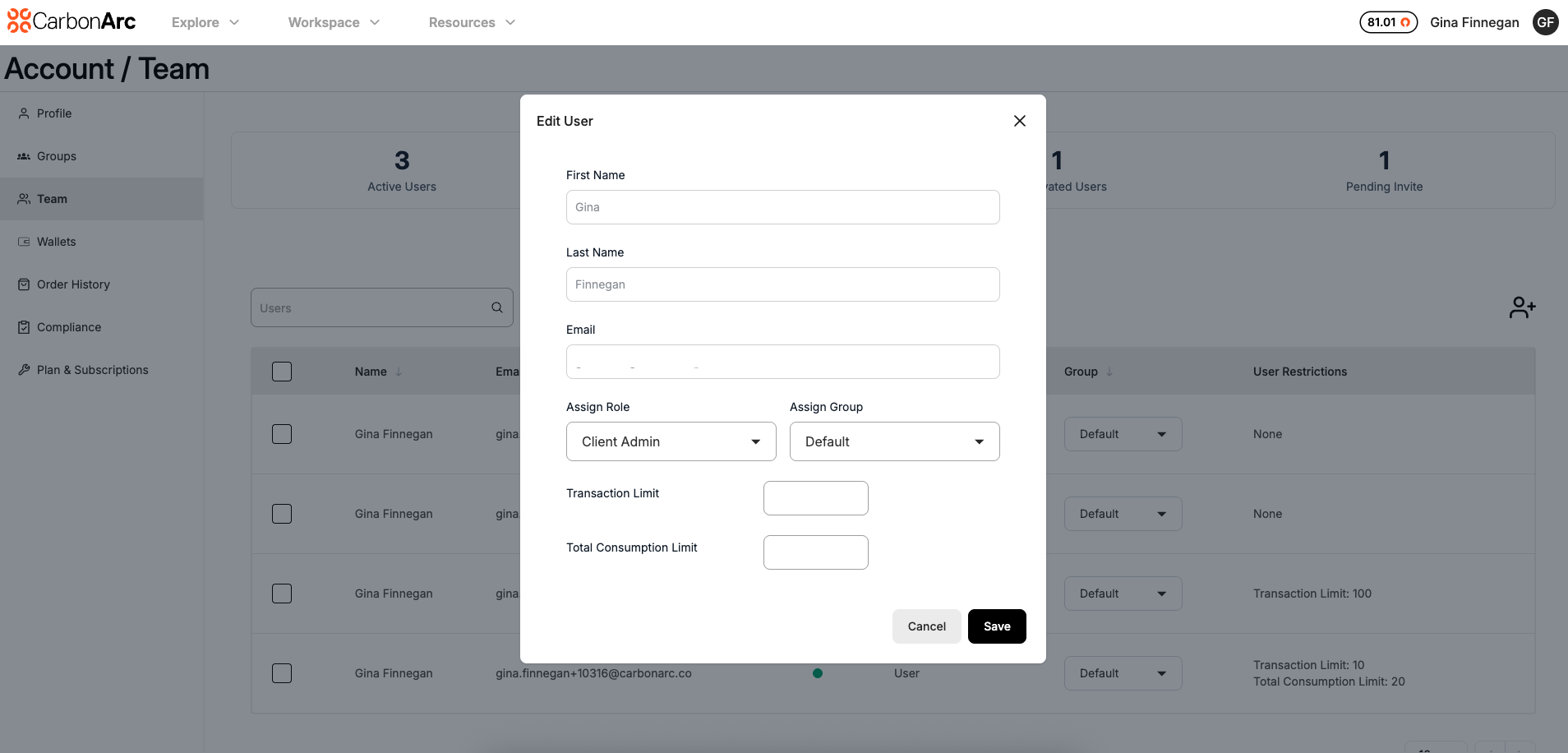
- Navigate to the Team page.
- Hover over the team member and select the edit icon on the right side of the table.
- Select a group from the Assign Group dropdown.
- Select Save to save your changes.
Edit Groups
- Hover over the group and select the edit icon on the right side of the table.
- A modal will appear where you can:
- Set the group as a default
- Add/Remove/Edit Transaction Limit
- Add/Remove/Edit Consumption Limit
- View/Remove Team Members
- Select Save to save changes.

Understanding Usage Limits
When usage limits are applied to a group, every user in that group inherits those limits. Usage limits apply when spending tokens in the Builder, Python SDK package, and MCP server.
-
Transaction Limits:
When a transaction limit is set for a group (e.g., 100 tokens), any user in that group can only consume 100 tokens per transaction. -
Total Consumption Limit:
Setting a total consumption limit for a group is like setting the total spend or budget for a team. For example, if a consumption limit is set for 1,000 tokens, all team members in that group cannot exceed a total spend of 1,000 tokens.- The total consumption for a group cannot be reset.
- To allow additional spending after the limit is reached, you can edit the group and increase the limit.
Note: If a user is moved from Group A to Group B, their consumption while in Group A applies to Group A’s consumption limit (if any).
-
Group vs User Transaction Limits:
Usage limits can be assigned at both the User and Group level. If a user has both a User Transaction Limit and a Group Transaction Limit, the lowest limit will apply when consuming tokens. -
Group vs User Consumption Limits:
If a consumption limit is applied to both the user and their group, whichever limit is reached first will apply.- Example: If a group has a 1,000 token limit that has already been reached, and a user has a 500 token limit, even if the user has only consumed 400 tokens, they will still be blocked from spending tokens because the group limit has been reached.