Compliance
Overview
The Compliance Portal is available for compliance-managed accounts and provides controls for managing data access within your organization. This page is accessible only to Client Admins, Compliance Admins, and Super Admins.
Managing Data Access
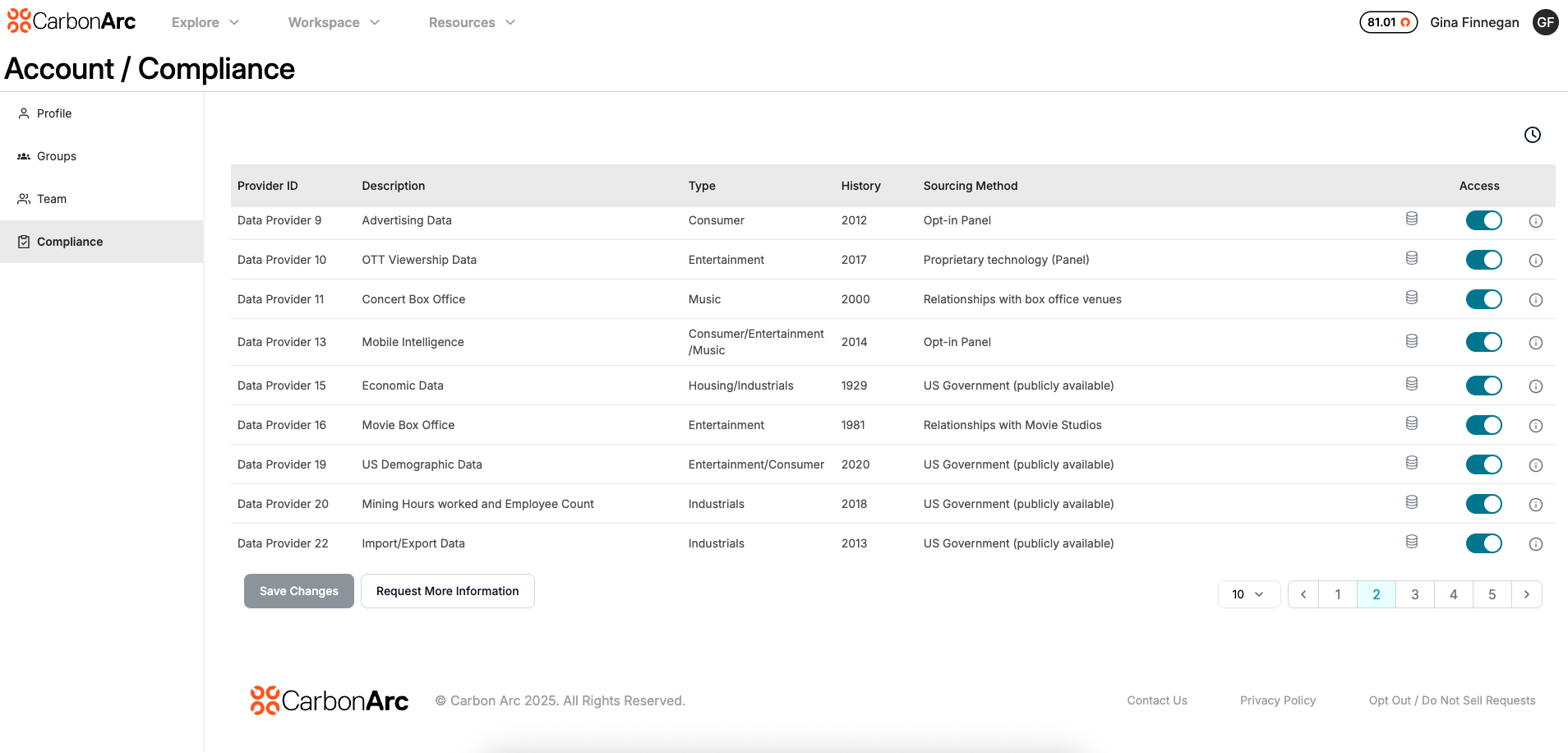
The Compliance Portal allows your organization to review and manage access to available datasets. Within the table, Compliance Admins can toggle data access on or off for the account based on internal governance needs.
If a dataset is subject to vendor-side restrictions, the dataset will be locked and the toggle will be disabled. In these cases, access cannot be provisioned.
After making any updates, you must select Save to apply changes.
- Client Admins: Can view compliance settings
- Compliance Admins: Can make changes and manage data access
- Super Admins: Have all capabilities of both Client and Compliance Admin roles
- Compliance Admins cannot consume data within the platform
Provider Details
The compliance table includes the following fields:
- Provider ID — Unique identifier for the data provider
- Description — High-level details about the dataset
- Type — Category or dataset classification
- History — Time span of available data for trend analysis
- Sourcing Method — How the dataset is acquired or delivered
- Tearsheet — Link to the Data Library tearsheet
- Access Toggle — Enables or disables access for your account
- Info Icon — Opens additional usage rights & contractual information
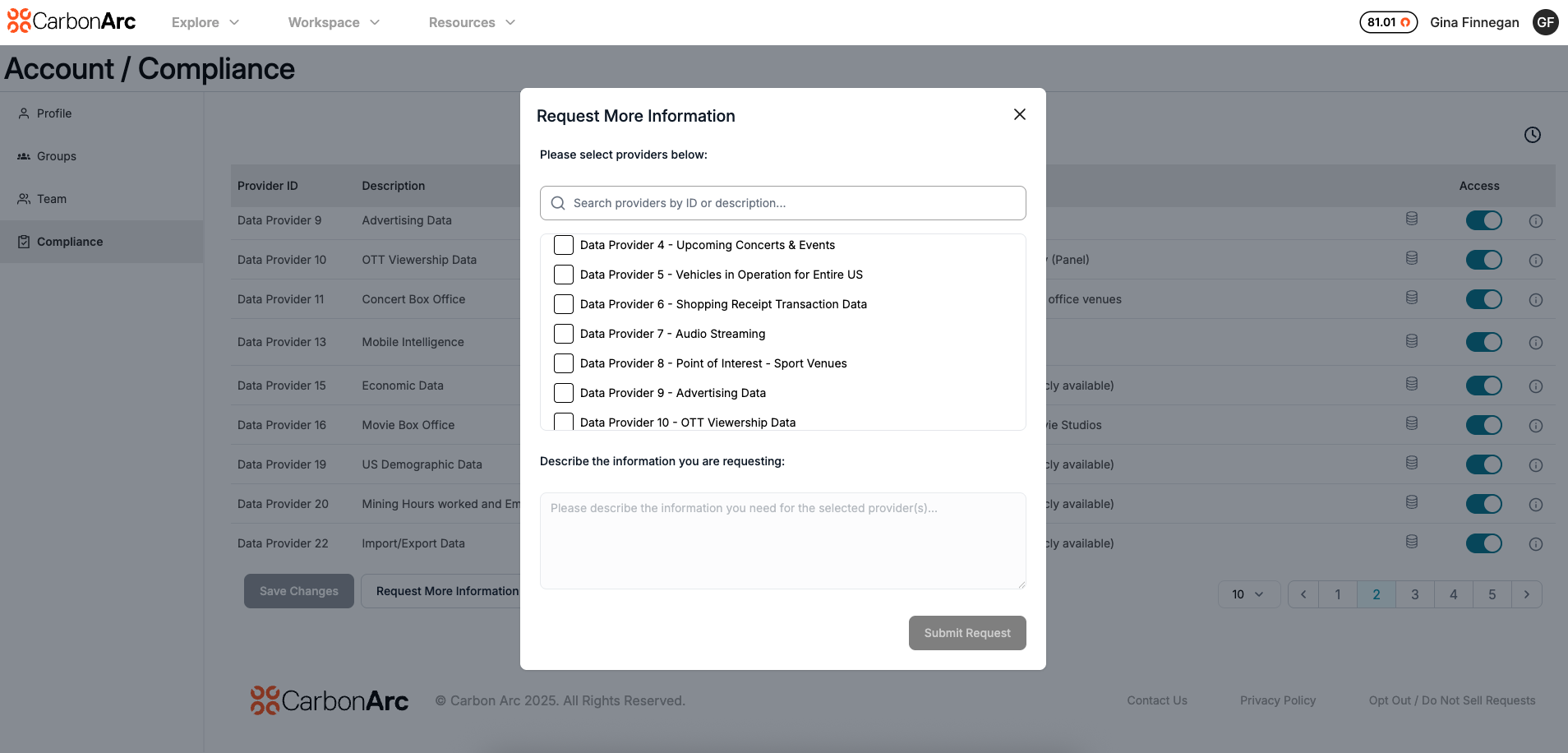
If a Compliance Admin requires further clarification, they may select the Request More Information button at the bottom of the table.
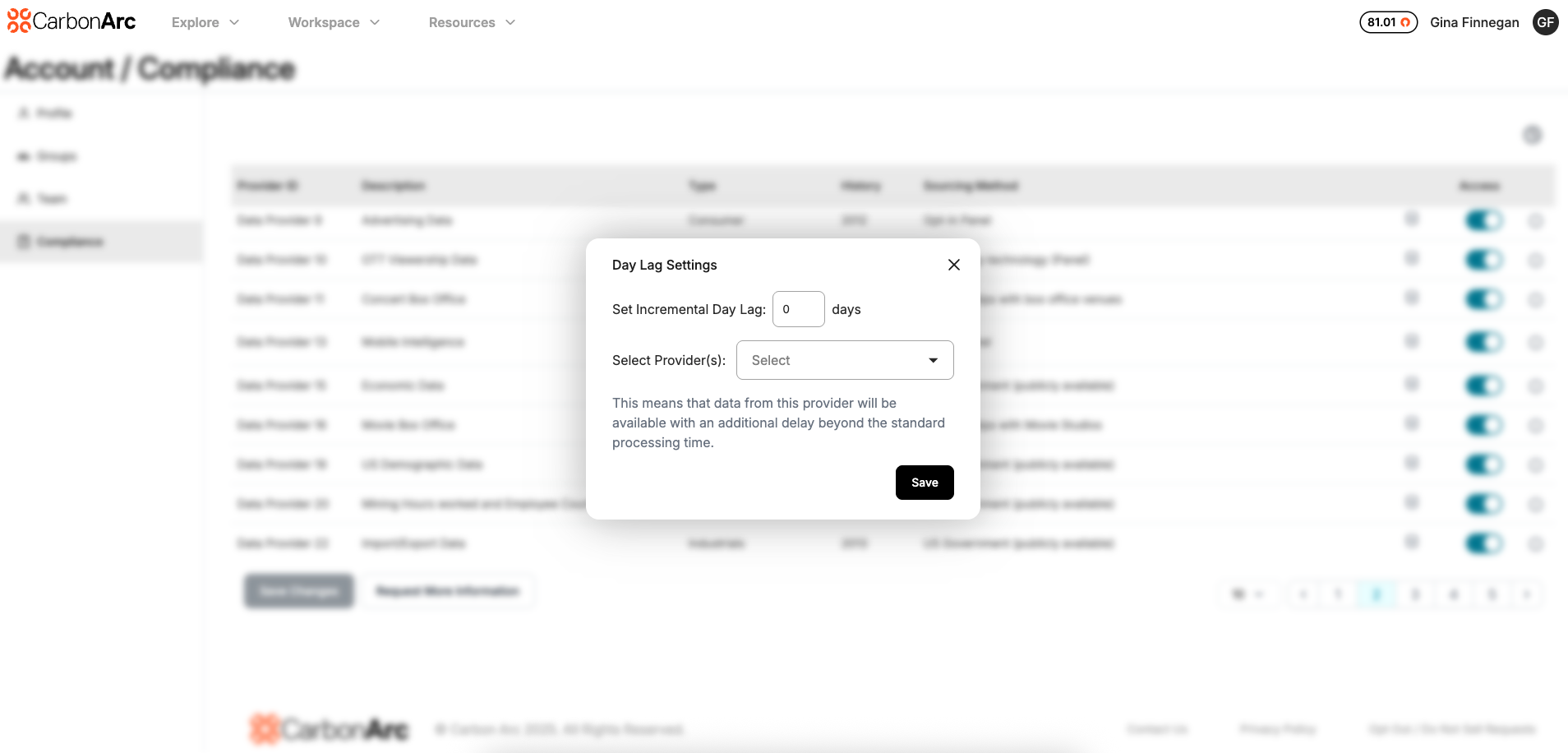
Day Lag Settings
Compliance Admins can apply a Day Lag to introduce an additional delay in data availability beyond the existing lag for a dataset.
To configure:
- Select the Day Lag icon in the top right of the page.
- A popup will appear where you can:
- Define the incremental day lag
- Select the applicable provider from a dropdown
- Select Save to apply changes.
Once applied, a Day Lag icon will appear in the provider’s row next to the Data Library icon.
To edit or remove an existing Day Lag, simply select the icon in the provider row.
If a Row Limit restriction is in place for your account, a Row Limit icon will also appear next to the Day Lag icon at the top right.
This setting is managed by Carbon Arc and cannot be edited in the platform.