Analyze Emails
Workflow
Name cohort → Download template → Upload file → Submit for processing
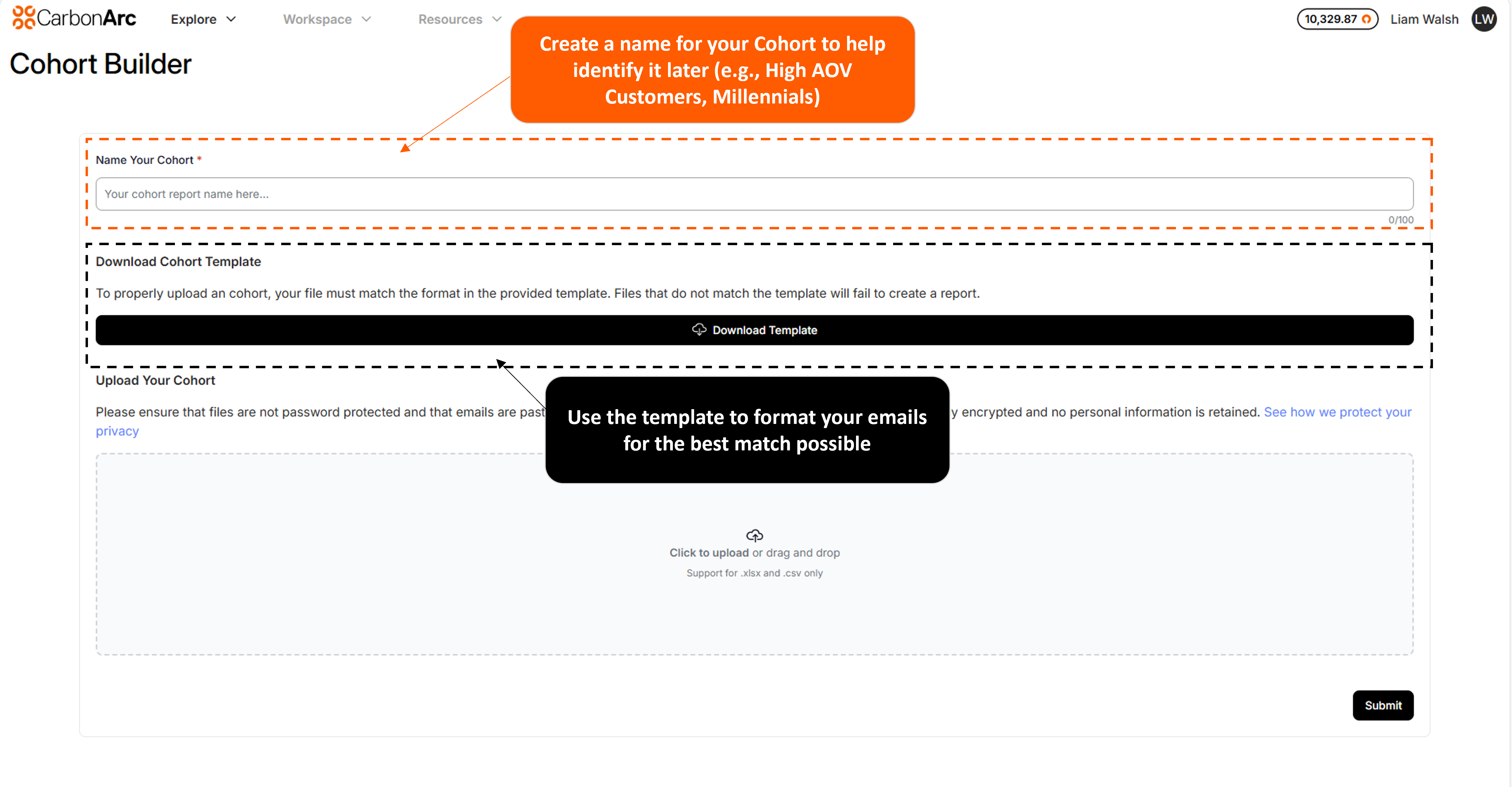
Step 1: Name Your Cohort
- 300 character limit
- Use descriptive names: "Q4_2024_Campaign" not "test"
- Include dates/campaigns for tracking
Step 2: Get Template
Click "Download Template" - required format for processing. Don't modify structure.
Step 3: Prepare Your Data
Requirements:
- Minimum 1,000 unique emails
- Valid format (user@domain.com)
- No duplicates
- No role-based emails (info@, support@)
- .xlsx or .csv format
- No password protection
Data prep:
- Remove invalid emails
- Strip whitespace
- Deduplicate (CB will do this for you, but it can't hurt)
- Use template structure exactly
Step 4: Upload
Options:
- Drag and drop into upload area
- Click to browse and select
Supported: .csv Not supported: .xls, .txt, .pdf
Wait for upload completion before navigating away.
Step 5: Submit
Click "Submit" to initiate:
- Secure processing
- Panel matching
- Report generation (7 dimensions)
Email notifications track progress.
Data Security
- Encrypted upload and processing
- PII deleted immediately after report generation
- Maximum 5-day retention on errors
- Full regulatory compliance
Troubleshooting
File format error
Save as .xlsx or .csv using provided template. No password protection.
Template won't download
Check popup blockers, try right-click save, clear cache.
Name field error
Stay under 100 characters, avoid special characters
Post-Submission
- Order Page screen
- Processing and matching
- Email notification with download links
- 7 CSV reports with benchmarks
- Data deletion confirmation
Optimization
Maximize matches:
- Use current emails
- Include full list
- Primary market region only
- Clean data thoroughly
Support
Contact us at support@carbonarc.co with any questions.